
Removing the "Mount Network Drives" application for Diamond
If you are using a College-provided desktop computer that is running Mac OS X, it has an application that automatically runs at startup to mount network drives on Diamond. Since Diamond is no longer in service, this application should be deleted.
Please use the steps below to stop this application from running automatically your computer at startup.
- If the "Mount Network Drives" application window is open on your computer,
click Cancel.
- Double-click on the Macintosh HD.
- Double-click on the Applications folder.
- Select Mount Network Drives and drag it to the Trash.
Notes:
- These steps will also need to be taken on any shared computers in your department (for
example, computers that more person use).
- If you do not remove the application from your computer, you will continue to see the
"Mount Network Drives" application at startup, and possibly see error messages about being unable
to connect to Diamond.
- Some College-provided laptop computers that are running Mac OS X also have this
application. You may use the same instructions above to stop this application from running
automatically on your computer at startup.
- The "Mount Network Drives" application will continue to launch at startup in the Mac OS X
computer clusters and classrooms until Information Technology has an opportunity to remove the
application from each computer. Please click Cancel when you see the application window
appear.
Connecting to fs1 - instructions for computers running Mac OS X, version 10.5 (Leopard) and 10.6 (Snow Leopard):
All students, faculty, and staff at Saint Mary's College are provided with 1GB of disk space on our network to save their files. This space is accessible from any networked computer on campus, and is commonly referred to as a personal network drive or the H: drive.
- While in the Finder (you know you're in the Finder if you look up at the menu bar
and it says Finder next to the Apple Menu - if you're not in the Finder, click on the
desktop), go to the Finder menu and select Preferences
- In the area below Show these items on the Desktop: check the box next to
Connected servers.
- Close the Finder Preferences window.
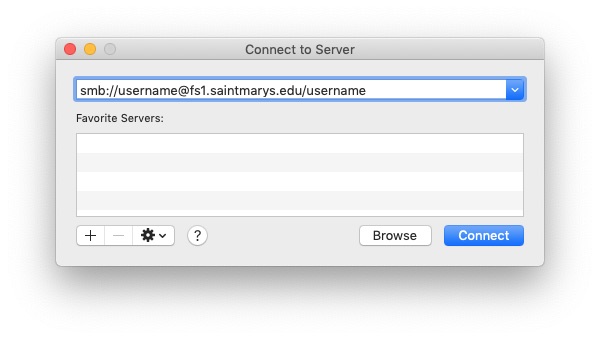
- While in the Finder, go to the Go menu and select Connect to Server...
- Next to Address: or Server Address: type in
smb://ADSMC;username@fs1.saintmarys.edu and
click Connect.
- You will be prompted for a username and password to connect to the server.
Type in ADSMC\your user name and your password and then click
Connect. (This is the same user name and password you use to check your Saint
Mary's e-mail.)
- The network drive's icon will appear on your desktop.
A window will open to display the contents of your network drive.
- To easily remount a network drive in Mac OS versions 10.5 and 10.6:
- Select the drive by clicking on its icon once to highlight it.
- Click down once on the icon of the drive and drag it to the right side of
the dock at the bottom of the screen. You should see icons in the dock moving
around to make room for the new icon to appear.
- Let go of the mouse button to "drop" the icon in the dock.
- When you shut down or log off your computer, it will disconnect from any mounted
network drives. To reconnect to your network drive when you turn your Mac back on,
click once on the icon in the dock of your network drive. You will
then be prompted for your Saint Mary's login and password and the volume will
mount.
Connecting to fs1 - instructions for computers running Mac OS X, versions 10.1 - 10.4:
All students, faculty, and staff at Saint Mary's College are provided with 1GB of disk space on our network to save their files. This space is accessible from any networked computer on campus, and is commonly referred to as a personal network drive or the H: drive.
- While in the Finder (you know you're in the Finder if you look up at the menu bar
and it says Finder next to the Apple Menu - if you're not in the Finder, click on the
desktop), go to the Go menu and select Connect to Server...
- Next to Address: or Server Address: type in
smb://fs1.saintmarys.edu and
click Connect.
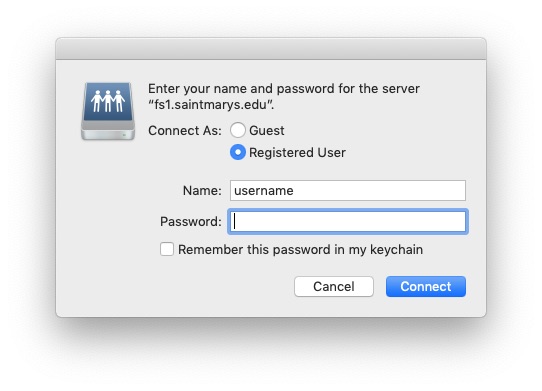
- You will be prompted for a username and password to connect to the server.
Type in your user name and your password and then click
Connect. (This is the same user name and password you use to check your Saint
Mary's e-mail.)
- The network drive's icon will appear on your desktop.
- To access any of the network drives mounted on your desktop,
double-click on its icon.
- To easily remount a network drive in Mac OS X versions 10.1 and 10.2:
- Click once on the icon of the network drive to highlight it.
- Go to the File menu and select Add to Favorites.
- When you shut down or log off your computer, it will disconnect from
any mounted network drives. To reconnect to a network drive when you turn your
Macintosh back on, go to the Go menu (while in the Finder), select Favorites,
and select the volume you want to mount. You will then be prompted for your Saint
Mary's login and password and the volume will mount.
- To easily remount a network drive in Mac OS versions 10.3 and 10.4:
- Click once on the icon of the network drive to highlight it.
- Click down once on the icon of the network drive and drag it to the right
side of the dock at the bottom of the screen. You should see icons in the dock
moving around to make room for the new icon to appear.
- Let go of the mouse button to "drop" the icon in the dock.
- When you shut down or log off your computer, it will disconnect from any
mounted network drives. To reconnect to a network drive when you turn your
Macintosh back on, click once on the icon in the dock of the network drive
you want to mount. You will then be prompted for your Saint Mary's login and
password and the volume will mount.
