 |
 |
How do I connect to the shared network drive (SMC, also referred to as the P: drive) from my macOS computer?
These instructions are for faculty and staff that use a College-provided computer with macOS.
If you have not already done so, please complete the steps for connecting to fs1 (your personal network drive) before connecting to the SMC shared network drive.Once you have completed these steps, you should not need to repeat them.
What is the SMC shared network drive?
Checking the operating system version on your Mac
Connecting to the SMC shared network drive from your College-owned Mac
If you encounter problems connecting to the SMC shared network drive
What is the SMC shared network drive?
Students, faculty, and staff at Saint Mary's College are given access to various shared network drives, depending on their department and materials needed. The file server for shared network drives is mavis.
Shared network drives are accessible from any networked computer on campus. All students, faculty, and staff have access to the shared network drive named SMC (also known as the P: drive). Several folders will be visible when you open the SMC network drive:
For each department/group that has an account on SMC, a folder will be visible. All members of the Saint Mary's community will be able to see the listing of folders for departments/groups. The contents of the folders in SMC will be visible only to the individuals with permission to view them.
Department/group accounts may have a subfolder named Public that will be accessible to all members of the Saint Mary's community. The decision to offer items in a Public folder is up to each individual department/group.
Checking the operating system version on your Mac
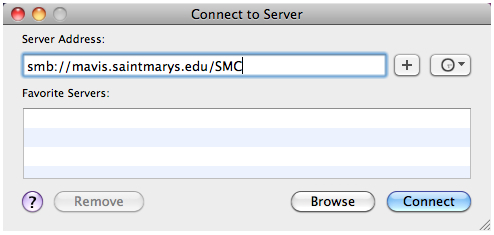
Connecting to the SMC drive - Instructions for computers running Mac OS X/macOS
10.12 (Sierra),
10.14 (Mojave),*
and 10.15 (Catalina)*:
Note: if you wanted to mount a specific folder on the SMC shared network drive, you can do so. For example, if you wanted to mount the Public folder inside the Infotech folder, which is in the Departments folder on the SMC shared drive, you would type in smb://mavis.saintmarys.edu/SMC/Departments/Infotech/Public - if a folder has a space in the name, please include that space in the path name.
If you encounter problems connecting to the SMC shared network drive
Faculty and staff can contact the Helpdesk at 574-284-4715 or helpdesk@saintmarys.edu.
Last Modified August 2, 2020
